Music Tools for Windows
 Music Tools for Mac


How to revert to old version of Kindle for PC
How to revert to old version of Kindle for PC? This blog will show you how to downgrade kindle for PC to older version step-by-step.
Reverting to an older version of the Kindle app can be useful when a newer Kindle version causes compatibility issues or no longer works with your existing workflow. Whether you need to downgrade Kindle for PC, Kindle for Windows, or Kindle for Mac, the process requires more than simply installing an old version. Amazon may automatically update the Kindle app or change how books are downloaded, so the order of operations is important. Below, we will show you three ways to downgrade Kindle to an older version.
How to revert to old version of kindle for pc 2.9.1
Step 1: Clean Uninstall the Latest Kindle for PC
Before installing an older version, you must remove the current one to avoid database conflicts.
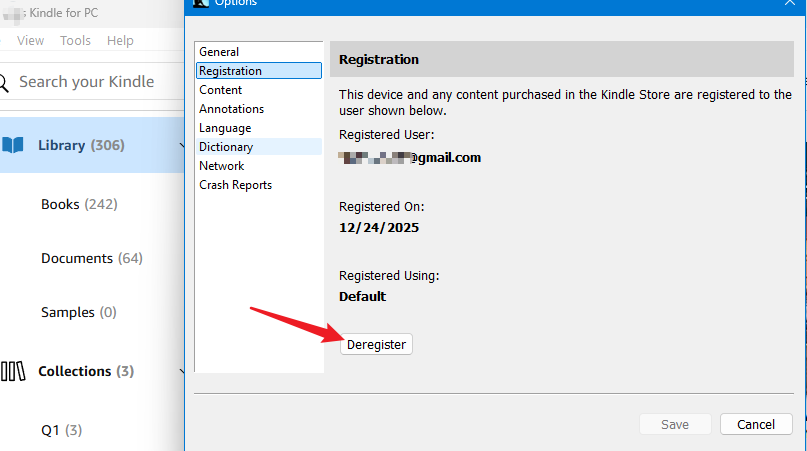
Deregister from kindle for pc.
Open your current Kindle app. Go to Tools > Options > Registration and click Deregister. (This prevents "ghost" devices from appearing in your Amazon account).
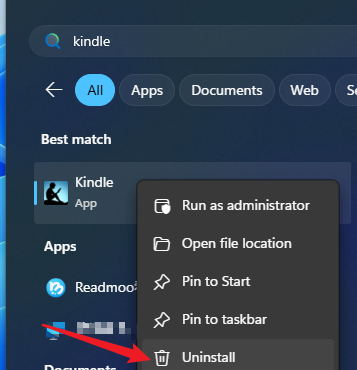
Uninstall
Use the Windows Control Panel or Settings to uninstall the Kindle app.
Delete "My kindle content" folder.
Delete the Kindle Content folder (usually found in your Documents folder with the path: C:\Users\\Documents\My Kindle Content) to ensure a fresh start.
Step 2: Install the Older Version
Older versions of Kindle (Windows) Download
Amazon does not officially host old installers, so here I've collected the reliable kindle older version download link for you.
Here are the most usually requested Older versions of Kindle (Windows) Download link for your reference.| Kindle for PC Version | Download | Status & Notes |
|---|---|---|
| Kindle for PC 2.9.1 | Download | Strongly recommended for Windows 10 users. The Microsoft Store version of Kindle requires Windows 11. |
| Kindle for PC 2.8.3 | Download | Not working anymore. |
| Kindle for PC 2.8.0 | Download | Not working anymore. |
| Kindle for PC 2.7.0 | Download | Not working anymore. |
| Kindle for PC 2.4.0 | Download | This version was a common choice for users looking for a balance between modern book compatibility and external tool support. However, it is no longer useful because Kindle books can no longer be downloaded with this version. |
| Kindle for PC 1.17 | Download | Retired. Versions 1.17 through 1.26 are among the most commonly used classic Kindle versions because they use the older AZW format rather than the newer KFX format. These versions should no longer be used. |
Step 3: Block Kindle Automatic Updates (No need any more)
Since Amazon has discontinued the legacy Kindle app, it will no longer update automatically. You can safely skip this step.
If you don't do this, Kindle will likely update itself back to the latest version the moment you log in.
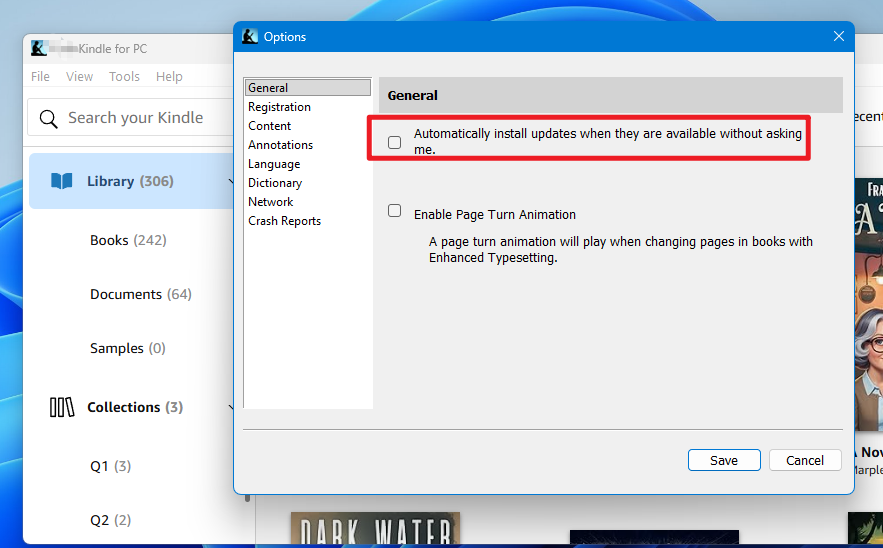
Basic step: Uncheck auto update in Kindle App.
Immediately after installing (and before downloading books), go to Tools > Options > General. Uncheck the box that says "Automatically install updates when they are available without asking me."
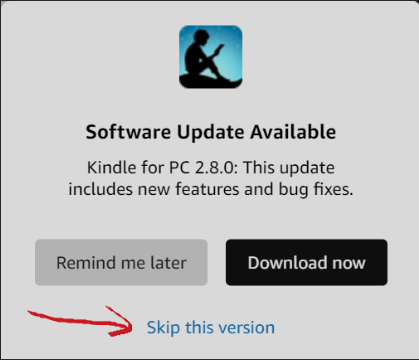
Advanced step: "Skip this version".
Then next time when Amazon tried to update our Kindle for PC app, you will receive a dialog "Software Update Available". Select "Skip this version", then you won't be updated to use the latest version of Kindle app.
Now you can log in to your kindle for PC and download your kindle books and remove Kindle drm.
Step 4: How to Crack DRM with Legacy Kindle for PC 2.9.1
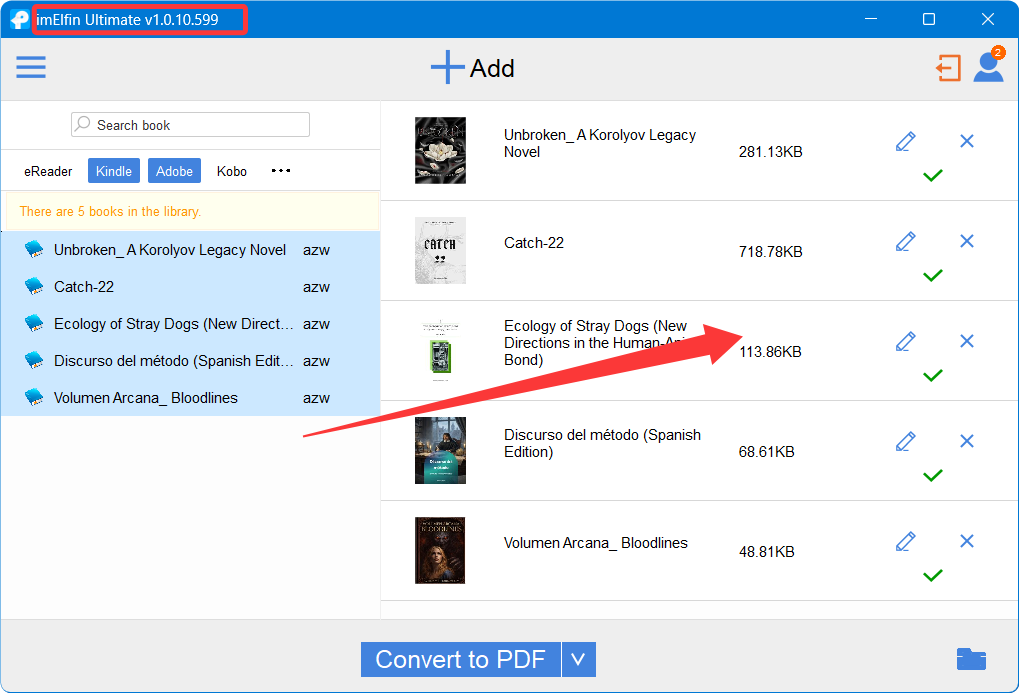
Although most users are using Windows 11, Windows 10 is still alive. If you don't want to upgrade your system and prefer to use the legacy Kindle app, you can still back up your Kindle books with imElfin eBook Ultimate, but you need a special version — imElfin eBook Ultimate 1.0.10.599.
The steps are super easy!
1. Download Kindle books via Legacy Kindle for PC 2.9.1.
2. Launch imElfin eBook Ultimate 1.0.10.599 and click the "Kindle" tab to display your downloaded Kindle books. Drag them to the right side to decrypt. All done.
How to Revert to an Old Version of Kindle for Windows App
If the latest Kindle for Windows app is not compatible with your Kindle books, Calibre dedrm tools or imElfin Ultimate, you may need to revert to an earlier version of the Kindle app.
Before installing an older version, completely uninstall the current Kindle for Windows app from your computer. Then install the compatible older version and make sure the Kindle app does not automatically update again.
Step 1. Uninstall the Current Kindle for Windows App
Open Windows Settings > Apps > Installed apps, find Kindle, and uninstall it.
After uninstalling Kindle, restart your computer if necessary.
Step 2. Install a Compatible Older Version
Download and install the Kindle for Windows version that is compatible with your current workflow. If you are using imElfin Ultimate to process Kindle books, make sure that both the Kindle app version and imElfin version are compatible with each other.
| MS Kindle Version Number | Download Link | Best Solution For: |
|---|---|---|
| v1.0.25218 | Download MS Kindle App v1.0.25218 | Still working for the solution |
| v1.0.23620 | Download MS Kindle App v1.0.23620 | imElfin eBook Ultimate |
Important: Kindle for Windows has different versions and Amazon may change its security or book-download mechanism in newer releases. An older Kindle version that worked previously may not continue to work after an Amazon-side change.
Step 3. Remove drm from kindle for Windows App
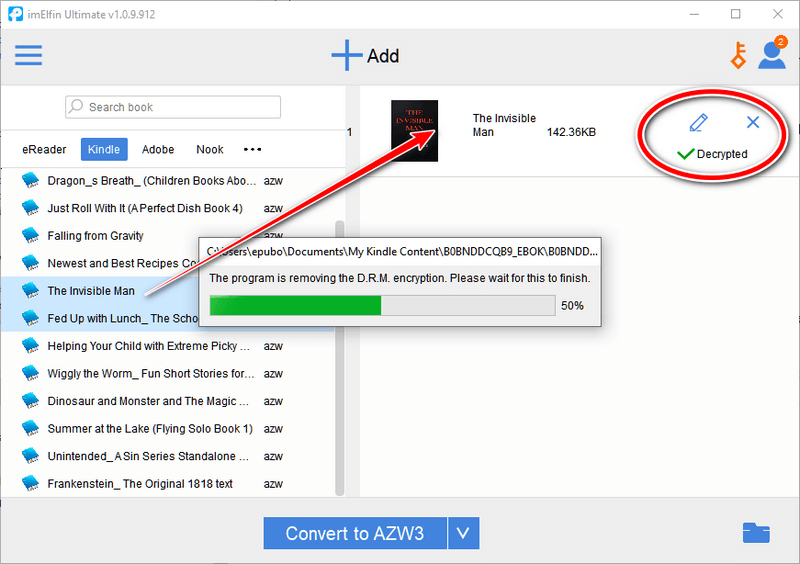
Ensure your kindle books are downloaded via the older version of Kindle for Windows app, and launch imElfin ebook Ultimate. Then drag the kindle books to right side for decrypting and converting. All done!
For the more ways to remove drm from kindle books, please read how to remove kindle drm on Windows.
How to Revert to Kindle for Mac 7.53
If you need to use Kindle for Mac 7.53 because a newer version of Kindle for Mac is not compatible with your current setup, you can try reverting to version 7.53.
Step 1. Remove the Current Kindle for Mac App
Quit Kindle for Mac completely. Then open the Applications folder, right-click Kindle, and select Move to Trash.
Empty the Trash only after you have confirmed that you no longer need the current Kindle application.
Step 2. Install Kindle for Mac 7.53
Install Kindle for Mac 7.53 on your Mac. After installation, open Kindle and sign in to your Amazon account.
| Kindle Version Number | Download Link | Best Solution For: |
|---|---|---|
| v7.53 | Download Kindle for Mac v7.53 | imElfin eBook Ultimate |
If you are using the Kindle app to download books for use with imelfin eBook Ultimate, open the books after launching on Imelfin ebook Ultimate. Then start the converting and decrypting.
For detailed steps on removing kindle books on Mac, please read how to remove kindle drm on Mac.
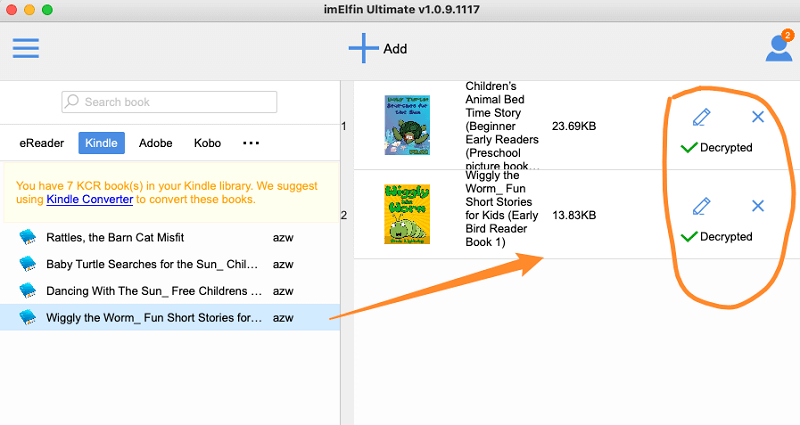
Note: Kindle for Mac compatibility can also depend on your Mac's hardware architecture and macOS version. In particular, Intel-based Macs and Apple Silicon Macs may not behave the same way with different Kindle for Mac releases. In our cases, imElfin ebook Ultimate now works only on Mac with Apple silicon chip.
What If Kindle Automatically Updates to a Newer Version?
If Kindle for Mac updates itself after you install version 7.53, the older version may no longer be available on your computer. In that case, reinstall Kindle 7.53 again.